
Printable setup reference
Coloring Page Printer Settings Checklist
Print cleaner coloring pages by checking scale, margins, ink mode, quality, paper type, and one test copy before printing the whole packet.
Coloring Notebook
Coloring Page Printer Settings Checklist
Check scale, margins, ink mode, quality, paper type, and one test copy before batching.
Before printing
- Open the PDF or image at full size
- Check page orientation before printing
- Preview the page margins
- Print one test copy before a batch
- Use single-sided printing for marker pages
Size and margins
- Start with actual size or 100 percent when the file fits
- Use fit-to-page only if lines are getting cut off
- Avoid borderless unless the design needs edge-to-edge printing
- Do not shrink detailed pages too much
- Keep the color key readable on activity pages
Ink and quality
- Use black-and-white or grayscale for line art
- Use draft only when the outlines still stay clear
- Use normal quality for most coloring pages
- Use high quality for keepsake pages, cards, or display pages
- Avoid printing preview thumbnails as full pages
Paper choice
- Use standard paper for quick pencil and crayon pages
- Use heavier paper for marker accents or saved pages
- Select the closest paper type in the print dialog
- Check printer limits before cardstock
- Let ink dry before stacking marker-friendly pages
Direct answer
The best printer settings for coloring pages are actual size or 100 percent, black-and-white or grayscale for line art, normal quality, the closest paper type, and single-sided printing. Use fit-to-page only when the preview shows cut-off edges, and always print one test copy before a group batch.
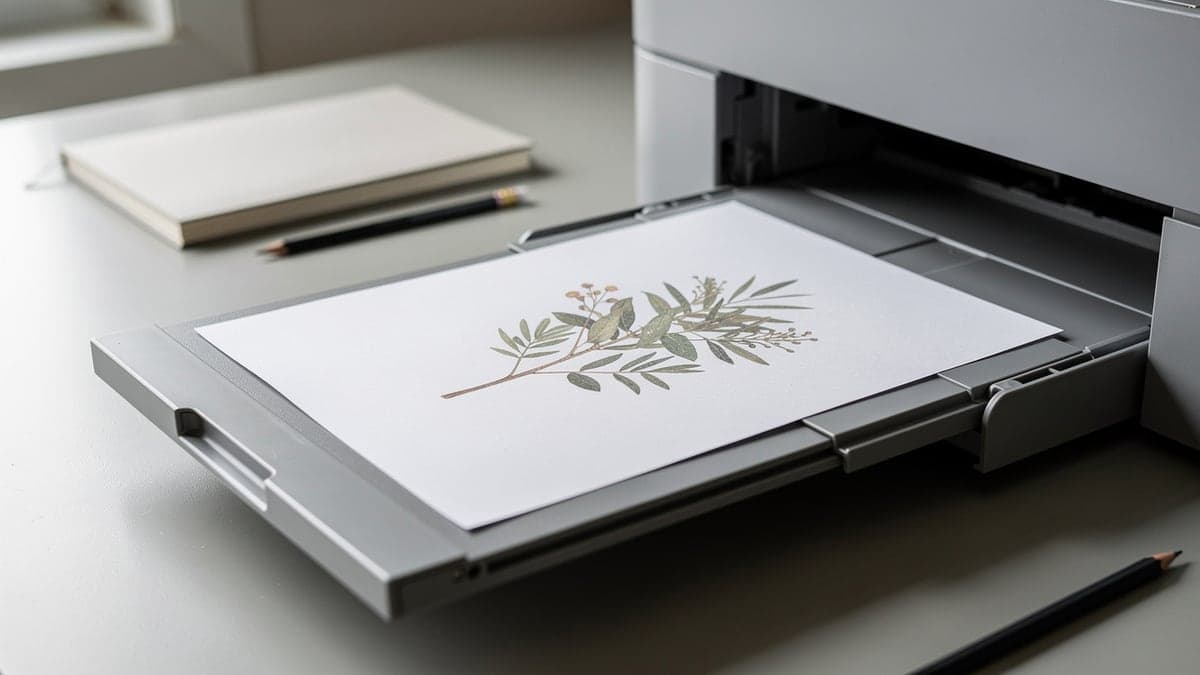
Setting-by-setting guide
Printer dialogs vary by brand, but most home printers ask the same basic questions: scale, orientation, color mode, quality, paper type, and one-sided or two-sided printing.
| Setting | Start with | Change when |
|---|---|---|
| Scale | Actual size or 100 percent | Use fit-to-page when the preview shows cut-off edges or a file made for another paper size. |
| Orientation | Match the file preview | Switch portrait or landscape only when the page clearly appears sideways in preview. |
| Color mode | Black-and-white or grayscale for line art | Use color only for instruction pages, color keys, covers, or pages meant to be displayed in color. |
| Quality | Normal | Use draft for quick kids pages if lines stay dark enough; use high quality for keepsakes. |
| Paper type | Plain paper for everyday printables | Choose heavier or specialty settings only when the printer supports the paper being used. |
| Two-sided printing | Off | Use double-sided only for pencil or crayon pages when bleed-through and display do not matter. |
Troubleshoot common print problems
| Problem | Likely cause | Try this |
|---|---|---|
| Lines are cut off | The design is too close to the edge or the printer cannot print the full page area. | Try fit-to-page, reduce scale slightly, or choose a file with safer margins. |
| Outlines are too faint | Draft mode, low ink, light original art, or a faded scan. | Use normal quality, check ink or toner, and choose cleaner black line art. |
| Details are too small | The file was shrunk, printed multiple pages per sheet, or designed with tiny spaces. | Print full size and choose large-print pages for kids, seniors, or quick activities. |
| Paper curls or wrinkles | Heavy ink coverage, thin paper, or too much marker pressure after printing. | Use cleaner line art, heavier paper, or colored pencils instead of wet markers. |
| Markers bleed or shadow | Thin paper, wet markers, or double-sided printing. | Use single-sided pages, a backing sheet, and paper that is tested for the marker set. |
Five-step test print routine
- 1
Preview the page
Check scale, orientation, margins, and whether the page is line art or a color preview before clicking print.
- 2
Print one copy
Use one test sheet to verify line darkness, page fit, and whether the design is readable at full size.
- 3
Mark the settings
Write down the setting that worked, especially for classroom packets, seasonal pages, and repeat printables.
- 4
Batch only after the test
Print group copies only after the first page is checked. This prevents repeating a margin or quality mistake.
- 5
Store the keeper file
Save tested favorites in a folder with notes about paper and settings so the next print is faster.
Supplies to compare after settings are tested
A better supply helps only after the file prints cleanly. Test scale, margins, and line darkness on standard paper before upgrading the paper or making a class set.
| Supply | Best for | What to know | Compare |
|---|---|---|---|
| Standard printer paper | Quick kids pages, test copies, crayons, colored pencils, and classroom batches | Use this first when you are testing margins, scale, and line darkness. | Compare on Amazon |
| Heavyweight printer paper | Adult printables, marker accents, display pages, cards, and pages worth saving | Check printer compatibility and test one sheet before printing a full pack. | Compare on Amazon |
| Marker backing sheet | Single-sided pages, marker tests, bound books, and protecting tables | A backing sheet helps protect the surface below but does not make thin paper bleed-proof. | Compare on Amazon |
| Printable page folder | Keeping tested printables, settings notes, seasonal pages, and reprint favorites together | Store the setting notes with the page so you do not repeat test prints later. | Compare on Amazon |
Useful contexts
Printable creators, teacher resource pages, homeschool planning posts, and craft blogs can link to this checklist when readers need a simple pre-print routine.
Natural anchors include coloring page printer settings, best printer settings for coloring pages, and printable coloring page test print checklist.
FAQ
What are the best printer settings for coloring pages?
Start with actual size or 100 percent, black-and-white or grayscale for line art, normal quality, the closest paper type, and single-sided printing. Print one test copy before a batch.
Should I use fit-to-page for coloring pages?
Use actual size when the file fits the paper. Use fit-to-page when the preview shows cut-off lines, unsafe margins, or a page made for a different paper size.
Should coloring pages be printed in draft mode?
Draft mode can work for quick kids pages if the outlines stay clear. Use normal quality for most pages and high quality only for keepsake pages, cards, or display pages.
Should printable coloring pages be single-sided?
Single-sided printing is usually safer, especially for markers, display pages, and pages kids may cut out. Double-sided printing works best for simple pencil or crayon pages.
Why are my coloring page lines getting cut off?
The design may be too close to the edge, the printer may need larger margins, or the scale may be wrong. Try fit-to-page, reduce scale slightly, or choose a file with safer margins.
What paper setting should I choose for coloring pages?
Choose plain paper for everyday printer paper. If you use heavier paper or cardstock, select the closest supported paper type and test one sheet before printing a full pack.